The self-service printing kiosks at Leclerc do not all operate in the same way. Some only accept USB drives, while others include Wi-Fi or Bluetooth access to send a file from a smartphone. Before you head out, the first thing to check is not the store’s address, but the type of kiosk installed and the supported file formats.
Self-service kiosk or Kodak Express corner: two distinct printing circuits at Leclerc
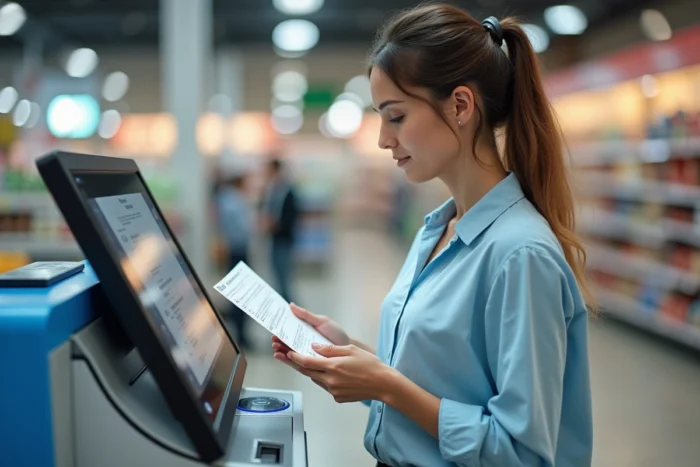
We often observe confusion between two services that coexist in some E.Leclerc centers. The first is the self-service printing kiosk, usually located near the checkout lines. It allows you to print office documents (PDF, JPEG) from a USB drive, without human intervention.
The second circuit goes through a Kodak Express corner located in the shopping gallery of certain Leclerc centers. This corner is not limited to photo prints: it also offers digital document printing, lamination, and binding, with dedicated staff to assist customers who are not comfortable with computer tools.
When you are looking to print a document at Leclerc, first identify which of these two circuits exists in your store. For a simple black and white administrative document, the self-service kiosk is sufficient. For a bound document, laminated or in large format, the Kodak Express corner will be more suitable, and often faster than fumbling alone at a kiosk.
A call to the store before your visit remains the most reliable method. Some centers continuously add or upgrade their printing kiosks: a recent communication from an E.Leclerc center mentioned the arrival of document printing as a new service funded by a participatory fund in 2026.
File formats and USB supports: technical incompatibilities to anticipate
The kiosk accepts PDF and JPEG in almost all cases. Word (.docx) or LibreOffice (.odt) files are generally not recognized. If your document is in word processing format, convert it to PDF before leaving your home. On Windows, the “Print to PDF” function is sufficient. On smartphone, most office applications offer a native PDF export.
The USB drive remains the most universal medium. Format it in FAT32 or exFAT: the NTFS format can cause reading issues on some kiosks. Avoid very large capacity drives that are poorly formatted or contain thousands of files, as the loading time at the kiosk becomes penalizing.
Send a file from a smartphone
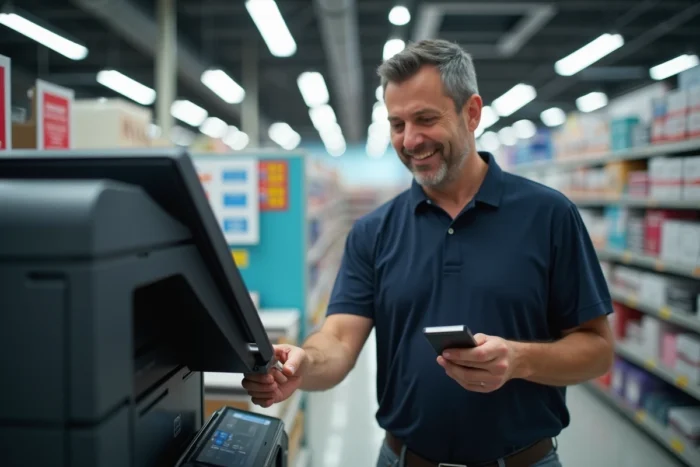
Some recent kiosks allow transfer via direct Wi-Fi or Bluetooth. We recommend not relying on this option without prior verification. If you do not have a USB drive, an alternative is to use a USB-C/Lightning to USB-A adapter, sold in the multimedia section of the same store for a few euros.
- PDF and JPEG: formats accepted by almost all Leclerc kiosks
- Word, ODT, PNG: require prior conversion to PDF
- USB drive in FAT32 or exFAT: maximum compatibility with kiosks
- Files named simply, without special characters or accents in the name
Kiosk settings: what saves time
The kiosk’s touchscreen interface offers several settings. The most structuring choice is between black and white or color printing, as it determines both the price and the queue (color prints are slower).
A4 format is the standard. Some kiosks offer A3, but rarely in classic self-service. If you need this format, head directly to the photo or office corner.
Double-sided and number of copies
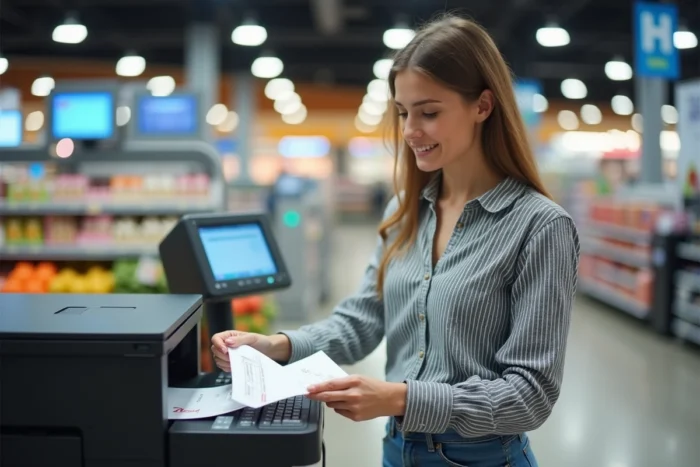
Automatic double-sided printing is not available on all kiosks. If your document is several pages long and you want to save paper, check for the presence of this option in the menu before starting the print job. If absent, first print the odd pages and then manually flip the sheets for the even pages, following the orientation indicated by the kiosk.
For multiple copies, select the number of copies before confirming. Manually restarting each copy from the main menu wastes considerable time, especially during peak hours.
Time slots and store traffic at Leclerc
The printing kiosks share space with the checkout area or the photo corner. During peak hours (Saturday morning, Wednesday afternoon, the day before school starts), the wait can become significant. We recommend prioritizing time slots during the week, between the store opening and 10 a.m., or later in the day after 6 p.m.
The staff in the multimedia section or at the information desk can assist in case of paper jams or malfunctions. Ask for their help rather than attempting a wild restart that could block the kiosk for the next customers.
- Monday to Friday before 10 a.m.: the least crowded slots for the kiosks
- Saturday and the day before holidays: potentially long wait, especially at the photo corner
- Check the specific hours for the printing service, which may differ from those of the store
Alternatives when the Leclerc kiosk is unavailable
A kiosk out of service or a long queue does not mean you have to go home empty-handed. Some post offices near shopping centers have Ricoh photocopiers available for self-service, with printing functions from USB drives in PDF and JPEG, as well as scanning.
Municipal libraries, coworking spaces, and some town halls also offer paid or free access to a printer. The most effective reflex remains to always keep a PDF version ready on your phone: this allows you to switch to any kiosk or shared printer without going through a computer.
In case of emergency, mobile printing applications compatible with Mopria printers (available on the Play Store) allow you to send a document to a network printer from an Android smartphone, provided the target printer is connected to the same Wi-Fi network.