
The Arena portal is the centralized access point for the management applications of the Montpellier academy. When a member of the National Education staff cannot connect, the issue is not always due to a forgotten password. Behind an access denial may lie an authorization issue, a corrupted browser cache, or a temporary server outage.
Authorization and access rights on Arena: the invisible cause of blockages
Most online guides immediately direct users to reset their password. This approach overlooks a more common mechanism than one might think: a valid account but not authorized for the targeted application.
On Arena, each application (ONDE for school management, LSU for school reports, INCLUSCOL for exam accommodations) requires a specific authorization declared within the academy. An active academic ID is not enough. If the user profile is not linked to the requested application, Arena displays an authentication error that resembles a password issue, but is not one.
Detailed resources exist to understand authentication on the Montpellier Arena portal and to distinguish a real technical blockage from an authorization issue.
The solution involves reporting to the academic IT department, which is the only entity authorized to verify and correct access rights. Changing the password in this specific case resolves nothing and may even complicate the situation if the new password does not meet the expected complexity criteria.

Error “service temporarily disrupted”: diagnosis and reporting
When Arena displays the message “Access is temporarily disrupted,” two hypotheses arise: a scheduled maintenance of the academic server, or an unplanned technical incident.
Differentiating a server outage from a local problem
Before contacting support, a quick test can eliminate local causes. Opening Arena from another browser or another device connected to a different network (mobile hotspot, for example) is enough to determine the issue. If the portal remains inaccessible on all devices, the problem is on the server side.
In this case, the ministry recommends systematically reporting the incident to academic support by specifying three elements:
- The exact error message displayed by Arena, copied as is
- The targeted application (ONDE, LSU, INCLUSCOL, or others), as some outages only affect one service
- The time and date of the connection attempt, so that the IT department can cross-reference with server logs
This level of detail speeds up processing. A vague report like “Arena is not working” forces the technical team to ask clarifying questions, which prolongs resolution.
Browser and cache issues: technical checks
A significant portion of connection failures to Arena stems from the technical environment on the user side. The portal uses session cookies and security certificates sensitive to the state of the browser.
Clearing the cache and targeted cookies
Only deleting cookies from the domain ac-montpellier.fr prevents losing open sessions on other sites. In most browsers, this option can be found in the privacy settings, under “Cookies and site data,” with a domain search field.
The browser cache may also retain an outdated version of the login page. A forced reload (Ctrl+Shift+R on PC, Cmd+Shift+R on Mac) bypasses this issue without requiring a complete cache clear.
Extensions and antivirus that interfere
Ad blockers and certain security extensions intercept authentication requests. Password managers built into browsers may also inject incorrect credentials into the Arena login fields.
The most reliable method to isolate this type of conflict is to open a private browsing window, which temporarily disables all extensions. If the connection works in private browsing, one of the installed extensions is the culprit.
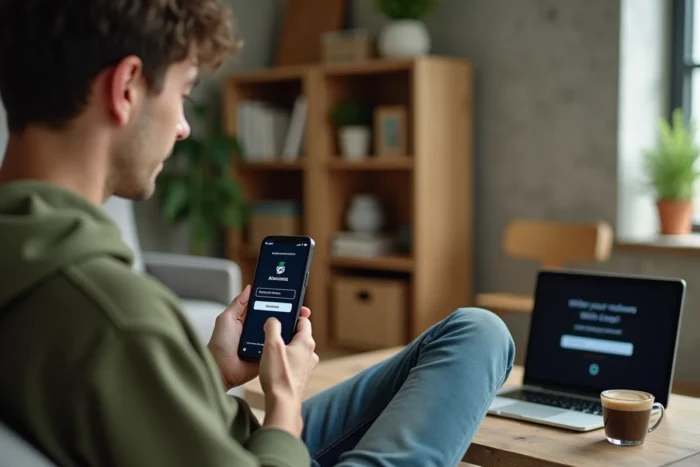
Academic password and NUMEN identifiers: what actually blocks
The Arena portal uses academic identifiers, distinct from those of other services like personal email. Confusion between these different accounts generates regular connection failures.
The academic identifier typically follows the format “first letter of the first name + last name” (or a variant if there are namesakes). The NUMEN is not the password: it is a personal identification number used for certain administrative procedures, not for Arena login.
In case of a genuine password forgetfulness, the reset procedure goes through the Montpellier academy portal. The form requires the academic email address (format [email protected]). If this email address is not recognized, the account may never have been activated, which refers back to the authorization issue described above.
- Check that the entered identifier matches the academic format, not a personal email address
- Do not confuse the NUMEN with the Arena password
- Test the reset before contacting the IT department, unless the error message explicitly mentions an authorization issue
Staff recently transferred to the Montpellier academy may sometimes have to wait for their transfer to be effective in the academic directory. This delay, which varies depending on the time of year, explains temporary blockages that are neither a bug nor a data entry error. Contacting the academic IT department remains the most direct approach to obtain a reliable diagnosis and a resolution tailored to the actual case.